Extension Installation
Get started with the Craft VSCode Extension in minutes. This guide covers installation from the marketplace, command line, and manual installation from GitHub releases.
Prerequisites
- Visual Studio Code: Version 1.75.0 or later
- Craft Diagram Server: Required for diagram generation features
- See the Installation Guide for server setup
- Server should run on
http://localhost:8080by default
Install from VS Code Marketplace (Recommended)
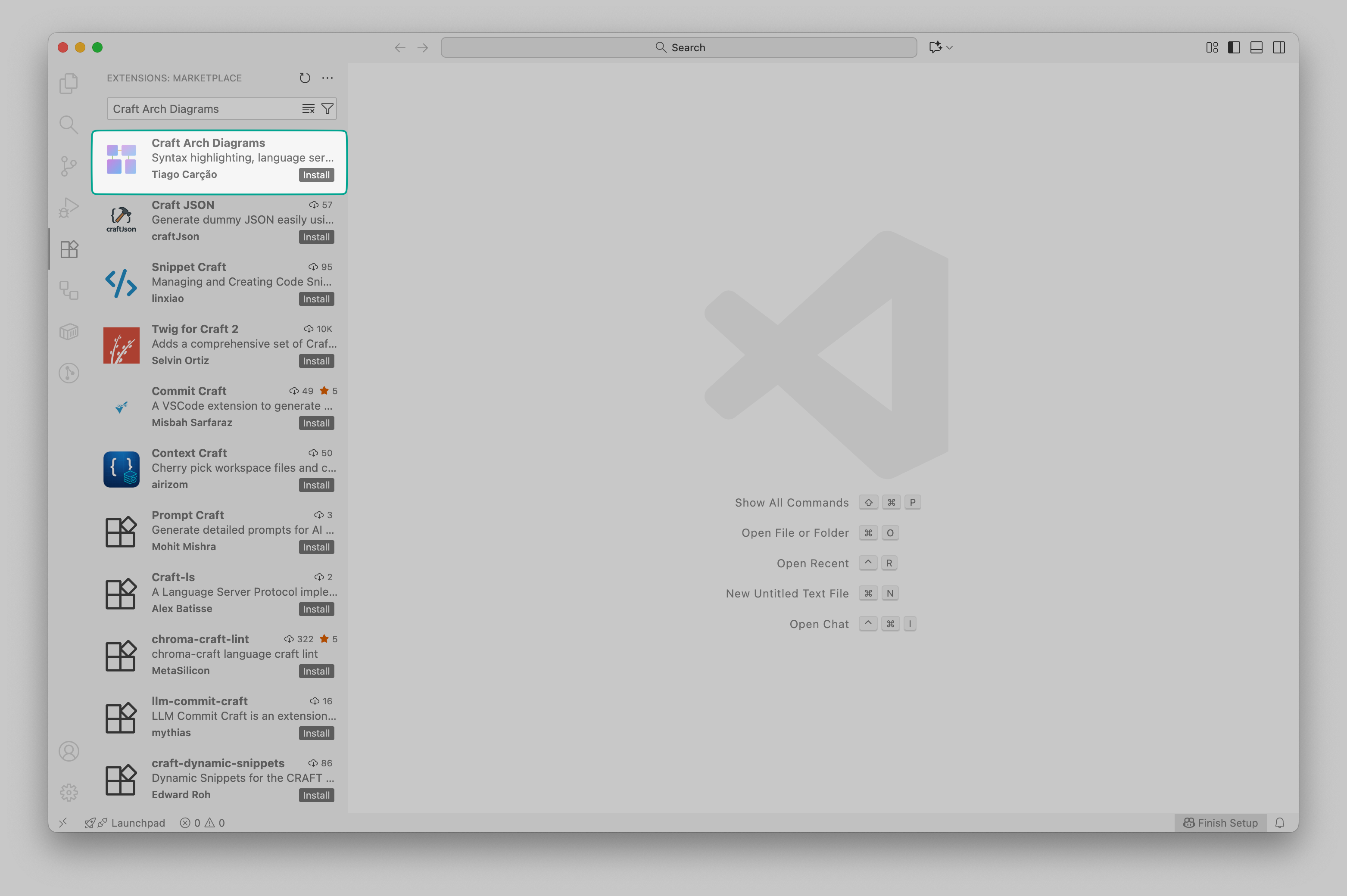
- Open Visual Studio Code
- Press
Ctrl+Shift+X(Windows/Linux) orCmd+Shift+X(Mac) to open the Extensions view - Search for "Craft Arch Diagrams"
- Click the Install button
- Wait for installation to complete
- The extension activates automatically when you open a
.craftfile
Install from Command Line
For automated or scripted installations:
code --install-extension tcarcao.craft-arch-diagramsThis is useful for:
- Setting up development environments
- Installing across multiple machines
- Containerized development setups
Install from GitHub Releases
For pre-release versions or offline installation:
- Visit the Releases page
- Download the latest
.vsixfile - In VS Code, press
Ctrl+Shift+P(Windows/Linux) orCmd+Shift+P(Mac) - Type "Extensions: Install from VSIX..." and select it
- Choose the downloaded
.vsixfile - Click "Install" when prompted
Verify Installation
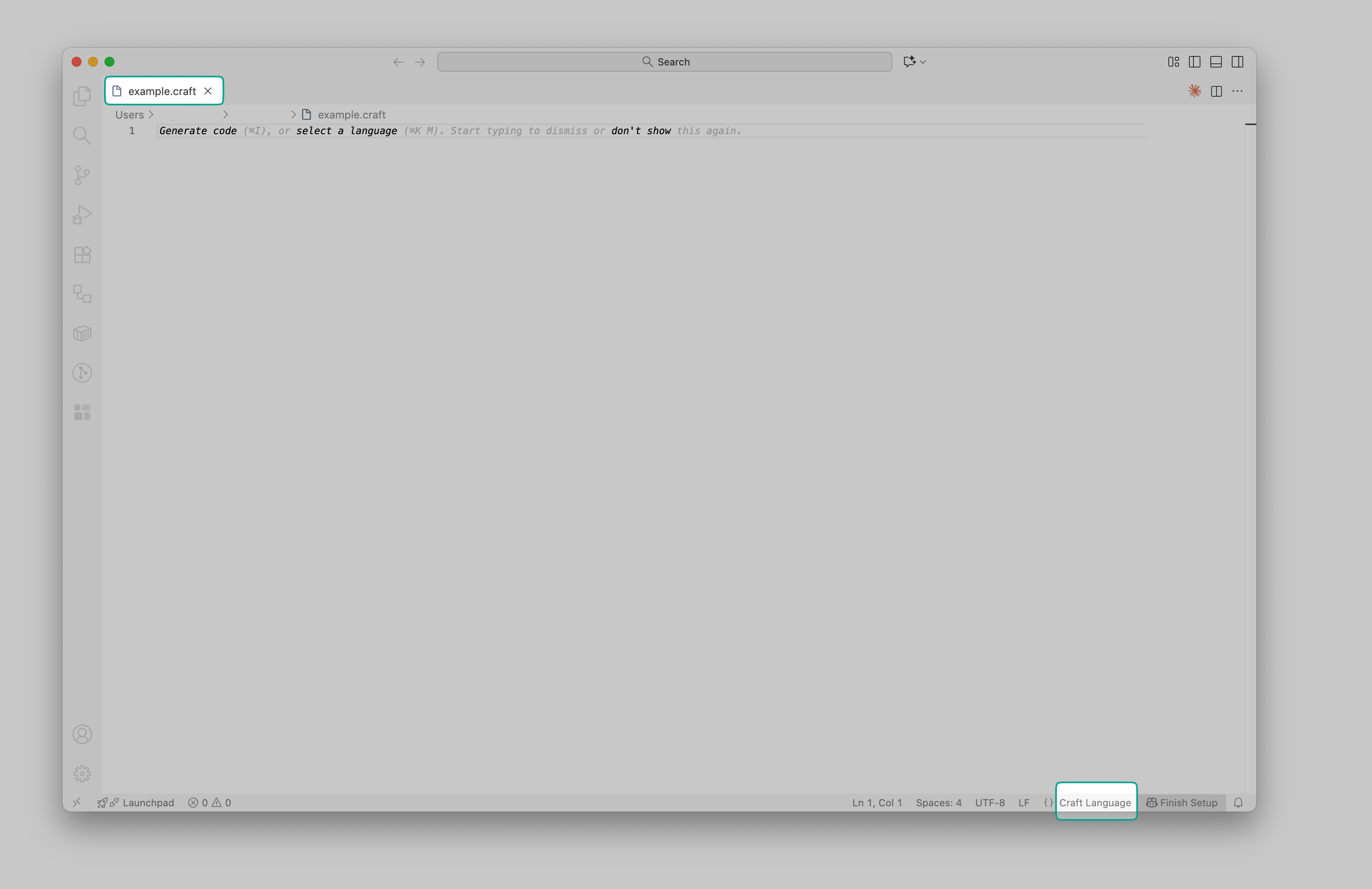
After installation, verify everything works:
Step 1: Create a Test File
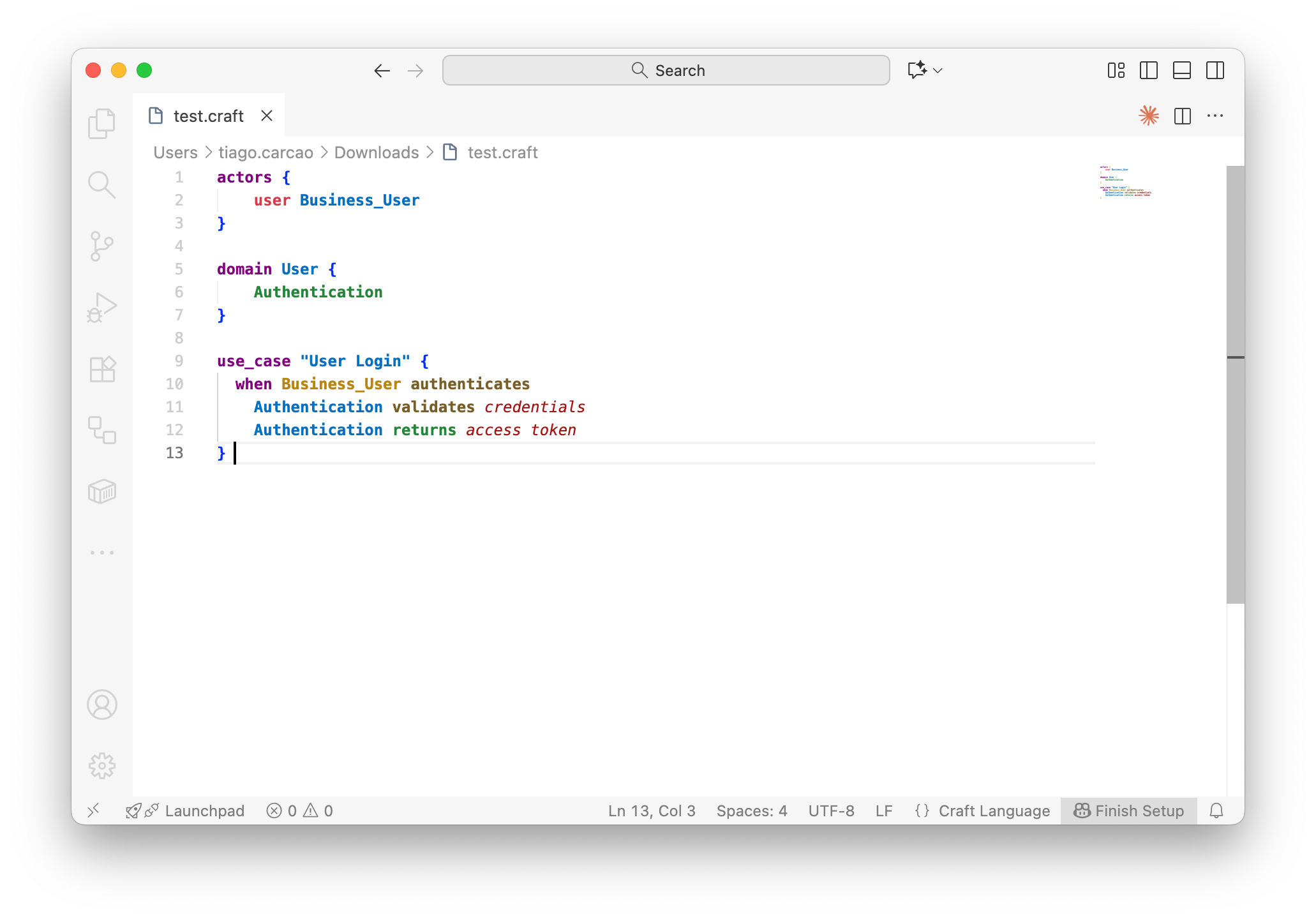
Create a new file named test.craft with the following content:
actors {
    user Business_User
}

domain User {
    Authentication
}

use_case "User Login" {
  when Business_User authenticates
    Authentication validates credentials
    Authentication returns access token
}
Step 2: Check Syntax Highlighting
You should immediately see:
- Keywords like
actors,domain,use_casehighlighted in purple/bold - Domain names like
Authenticationin blue/bold - Action verbs like
validates,returnsin orange/green - Strings in colored text
If you see plain text instead:
- Check the language mode in the status bar (bottom-right)
- Click it and select "Craft Language" if not already selected
- Reload VS Code if necessary:
Ctrl+Shift+P→ "Developer: Reload Window"
Step 3: Test Auto-completion
Position your cursor on a new line and start typing:
- Type
use→ Should suggestuse_casewith a snippet template - Type
dom→ Should suggestdomain - Press
Ctrl+Space→ Should show all available keywords
[SCREENSHOT NEEDED: Auto-completion in action]Show auto-completion dropdown appearing while typing
Step 4: Verify Sidebar Views
- Click the Craft icon in the Activity Bar (left sidebar)
- You should see two panels:
- Domain Manager: Showing domains from your file
- Services: Showing services (if defined)
If the sidebar doesn't appear:
- Make sure you have a
.craftfile open - Try saving the file to trigger a refresh
- Check View → Open View → Craft Domain Manager
Step 5: Test Diagram Generation (Optional)
Server Required
This step requires the Craft diagram server running. If you haven't set it up yet, skip this step and refer to the Installation Guide.
- With
test.craftopen, pressCtrl+Shift+D(Windows/Linux) orCmd+Shift+D(Mac) - A diagram preview panel should open beside your code
- If you get a connection error, verify the server is running at
http://localhost:8080
Language Mode Indicator
[SCREENSHOT NEEDED: Language mode selector]Show the language mode indicator in status bar and the language selection dropdown
The status bar (bottom-right) should show "Craft Language". If it shows something else:
- Click the language indicator
- Select "Craft Language" from the dropdown
- The extension will activate for that file
VS Code remembers your choice for .craft files, so you only need to do this once.
Troubleshooting Installation
Extension Not Activating
Symptoms: No syntax highlighting, no sidebar views, plain text display
Solutions:
- Check that the file has a
.craftextension - Verify the language mode is set to "Craft Language"
- Reload VS Code:
Ctrl+Shift+P→ "Developer: Reload Window" - Disable and re-enable the extension: Extensions view → Craft → Disable → Enable
Sidebar Views Not Appearing
Symptoms: Can't see Domain Manager or Services view
Solutions:
- Click the Craft icon in the Activity Bar (left sidebar)
- Go to View → Open View → Search for "Craft"
- Ensure you have a
.craftfile open - Save your file to trigger a refresh
Auto-completion Not Working
Symptoms: No suggestions when typing
Solutions:
- Check that semantic highlighting is enabled
- Look for "Craft Language Server" in Output panel (View → Output → Craft Language Server)
- Manually trigger with
Ctrl+Space - Reload the window if issues persist
Diagram Commands Not Found
Symptoms: Can't find "Craft: Preview C4 Diagram" in Command Palette
Solutions:
- Ensure the extension is installed and enabled
- Open a
.craftfile to activate the extension - Check Extensions view to verify installation
- Reinstall the extension if necessary
Updating the Extension
The extension updates automatically when new versions are released on the VS Code Marketplace:
- VS Code checks for updates periodically
- When an update is available, you'll see a notification
- Click "Update" to install the new version
- Reload VS Code if prompted
To manually check for updates:
- Go to Extensions view (
Ctrl+Shift+X) - Click the "..." menu at the top
- Select "Check for Extension Updates"
Uninstalling
To remove the extension:
- Open Extensions view (
Ctrl+Shift+X) - Search for "Craft Arch Diagrams"
- Click the gear icon → "Uninstall"
- Reload VS Code when prompted
Next Steps
Now that you have the extension installed:
- Explore all features - Learn about syntax highlighting, sidebar views, and diagram generation
- Learn keyboard shortcuts - Master the command palette and shortcuts
- Configure settings - Customize server URL, timeouts, and more
First Time Users
Start with the Quick Start Guide to learn the Craft language basics and create your first architecture diagram!