Extension Features
The Craft VSCode Extension transforms Visual Studio Code into a powerful IDE for architecture modeling. This page details all the features available to help you create, visualize, and manage your software architecture.
Syntax Highlighting
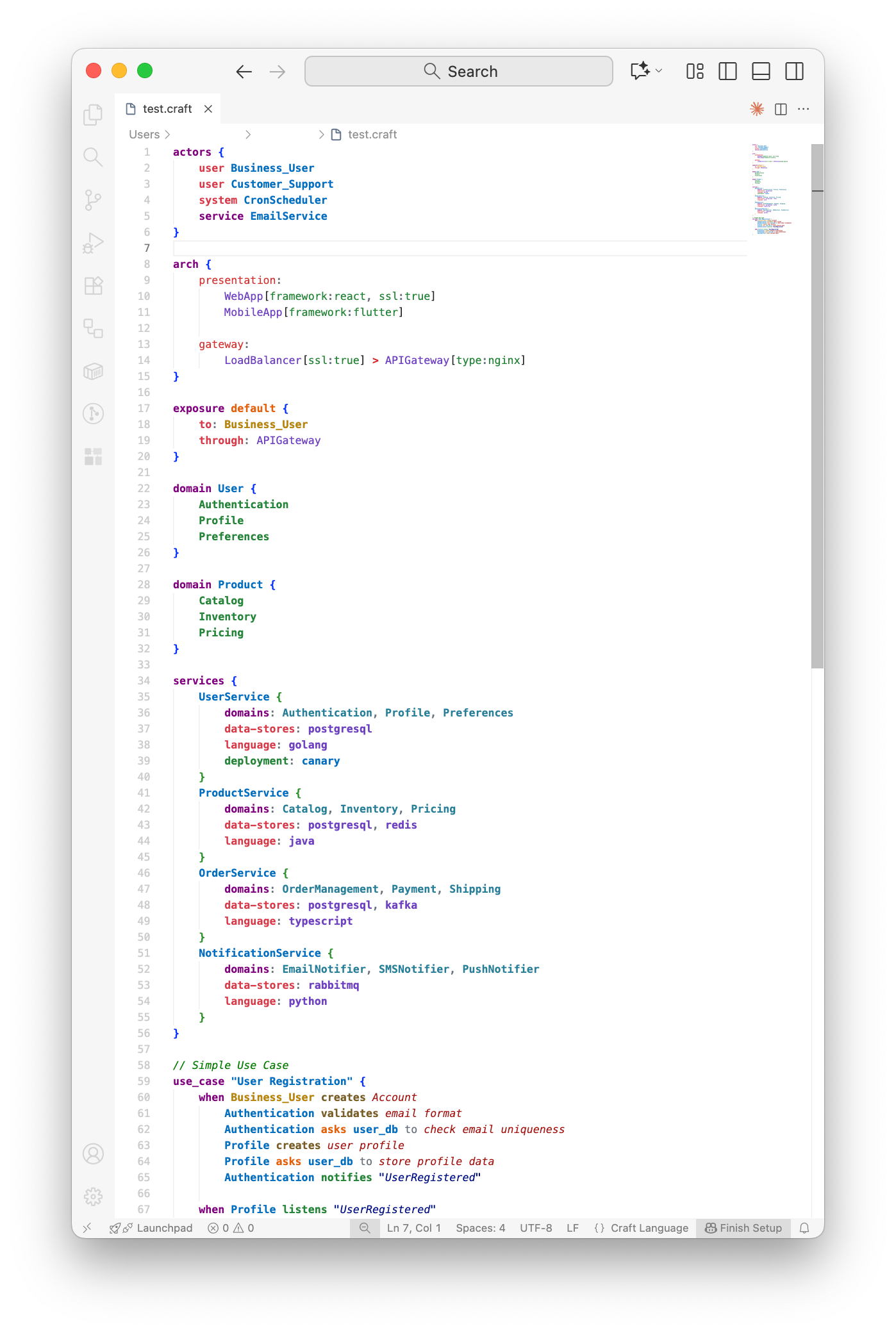
The extension provides sophisticated semantic syntax highlighting powered by Tree-sitter, with 40+ distinct token types that make your Craft code highly readable:
- Keywords (purple, bold):
service,domain,arch,use_case,actors,when - Service names (blue, bold): Service identifiers like
UserService,CommsService - Domain names (blue, bold): Domain identifiers like
Authentication,Profile - Properties (red, bold):
domains,language,data-stores,framework,catalog_ref,repo - Action verbs (orange/green, bold):
asks,notifies,listens,returns,creates - Typed refs (distinct token color): event refs (dotted qualified ids like
order.OrderCreated) and node slugs (bc:/domain:/term:/service:prefixed references) - Strings (various colors): Use case names, legacy (deprecated) event strings, regular quoted text
- Comments (green, italic): Line and block comments
The highlighting adapts in real-time as you type, making it easy to spot syntax issues and understand code structure at a glance.
Language Server Features
Auto-completion
[SCREENSHOT NEEDED: Auto-completion dropdown in action]Show the auto-completion popup with Craft keywords and domain names
The language server provides intelligent, context-aware code completion:
- Keyword suggestions: Type to get suggestions for
actors,services,use_case,domain,arch - Template snippets: Automatically insert complete code blocks with placeholders
- Domain and service references: Auto-complete existing domain and service names
- DSL structure guidance: Suggest valid syntax in current context
Press Ctrl+Space (Windows/Linux) or Cmd+Space (Mac) to manually trigger auto-completion at any time.
Real-time Validation
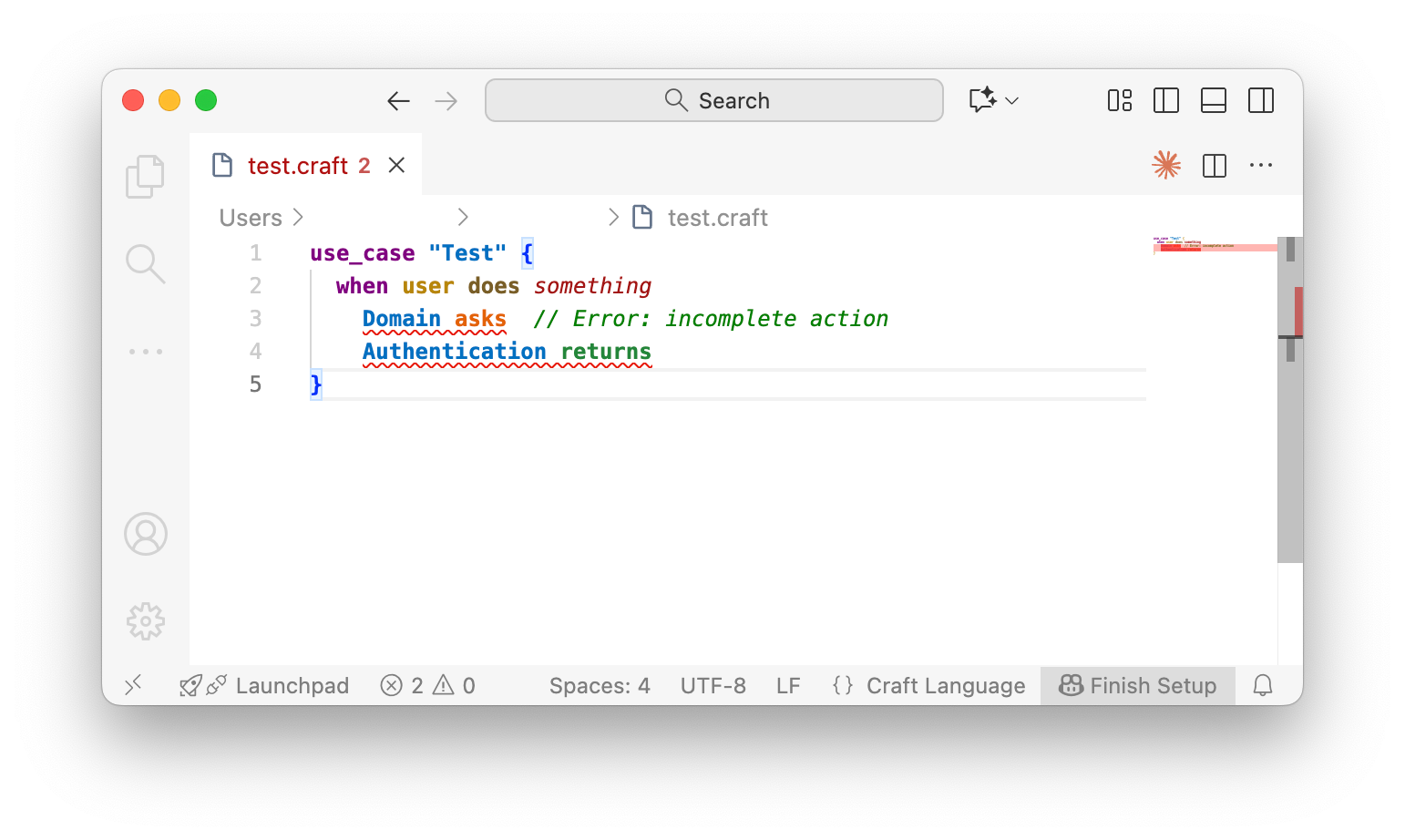
As you type, the language server validates your Craft code and highlights errors:
use_case "Test" {
  when user does something
    Domain asks  // ❌ Error: incomplete action
}
Errors appear as red squiggly underlines, and warnings as yellow underlines. Hover over any issue to see a detailed error message.
Code Formatting
[SCREENSHOT NEEDED: Before and after formatting comparison]Split view showing unformatted code on left and formatted code on right
Keep your architecture definitions clean and consistent:
- Press
Shift+Alt+F(Windows/Linux) orShift+Option+F(Mac) - Right-click and select "Format Document"
- Automatically formats indentation, spacing, and alignment
Domain Manager Sidebar
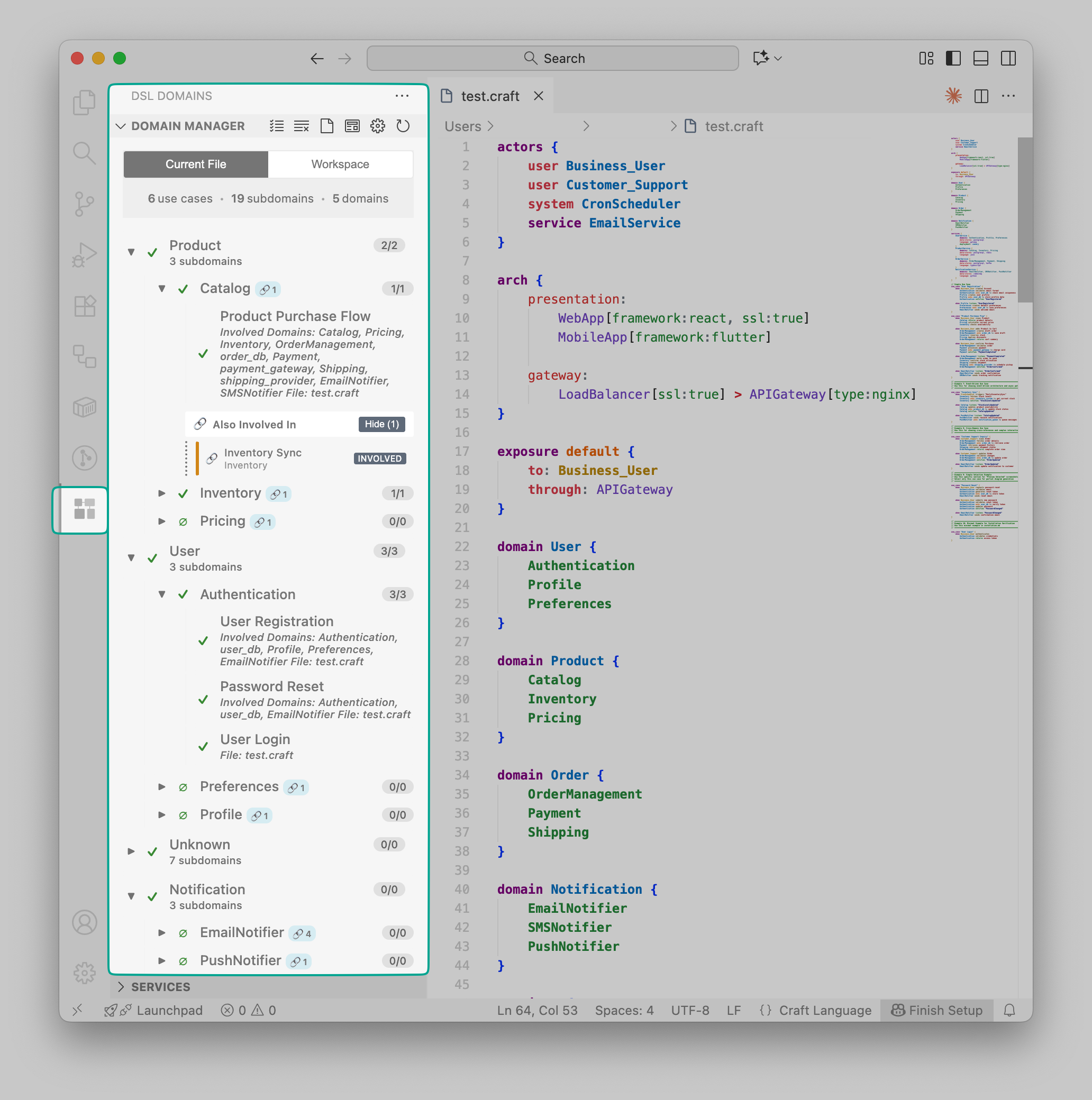
The Domain Manager provides a powerful tree view for exploring and selecting domains in your architecture.
View Modes
Toggle between two view modes using the buttons at the top:
- Current File: Shows only domains from the currently active
.craftfile - Workspace: Shows all domains from all
.craftfiles in your workspace
[SCREENSHOT NEEDED: View mode toggle buttons]Close-up of "Current File" and "Workspace" toggle buttons with one highlighted
Hierarchical Selection
The Domain Manager uses a sophisticated checkbox system for selecting elements:
Domain Level:
- Click a domain checkbox to select/deselect all bounded contexts and use cases within it
- ✓ (checkmark) = all items selected
- ▣ (filled square) = partial selection (some items selected)
- ○ (empty) = nothing selected
bounded context Level:
- Select/deselect all use cases within a bounded context
- Selection automatically updates parent domain state
Use Case Level:
- Select individual use cases to include in diagrams
- Selections cascade up to update bounded context and domain states
[SCREENSHOT NEEDED: Hierarchical selection states]Show domains with full selection (✓), partial selection (▣), and no selection (○)
Quick Selection Toolbar
[SCREENSHOT NEEDED: Toolbar buttons highlighted]Show toolbar with all three selection buttons visible and labeled
Rapid selection controls:
- Select All (checklist icon): Select all domains, bounded contexts, and use cases
- Clear Selection (clear icon): Deselect everything
- Select Current File (file icon): Select only items from the active file
Selection Counter
[SCREENSHOT NEEDED: Selection counter display]Show counter displaying "12 use cases • 5 bounded contexts • 2 domains"
The header displays your current selection count, helping you track what will be included in your diagram:
- Number of use cases selected
- Number of bounded contexts selected
- Number of domains selected
Diagram Options
[SCREENSHOT NEEDED: Domain diagram options panel expanded]Show expanded options with "Detailed" and "Architecture" mode buttons
Click the gear icon to configure diagram visualization:
Mode Options:
- Detailed: Shows complete domain diagram with all use cases and their interactions
- Architecture: Shows only bounded context-to-bounded context connections without use case details
Generating Domain Diagrams
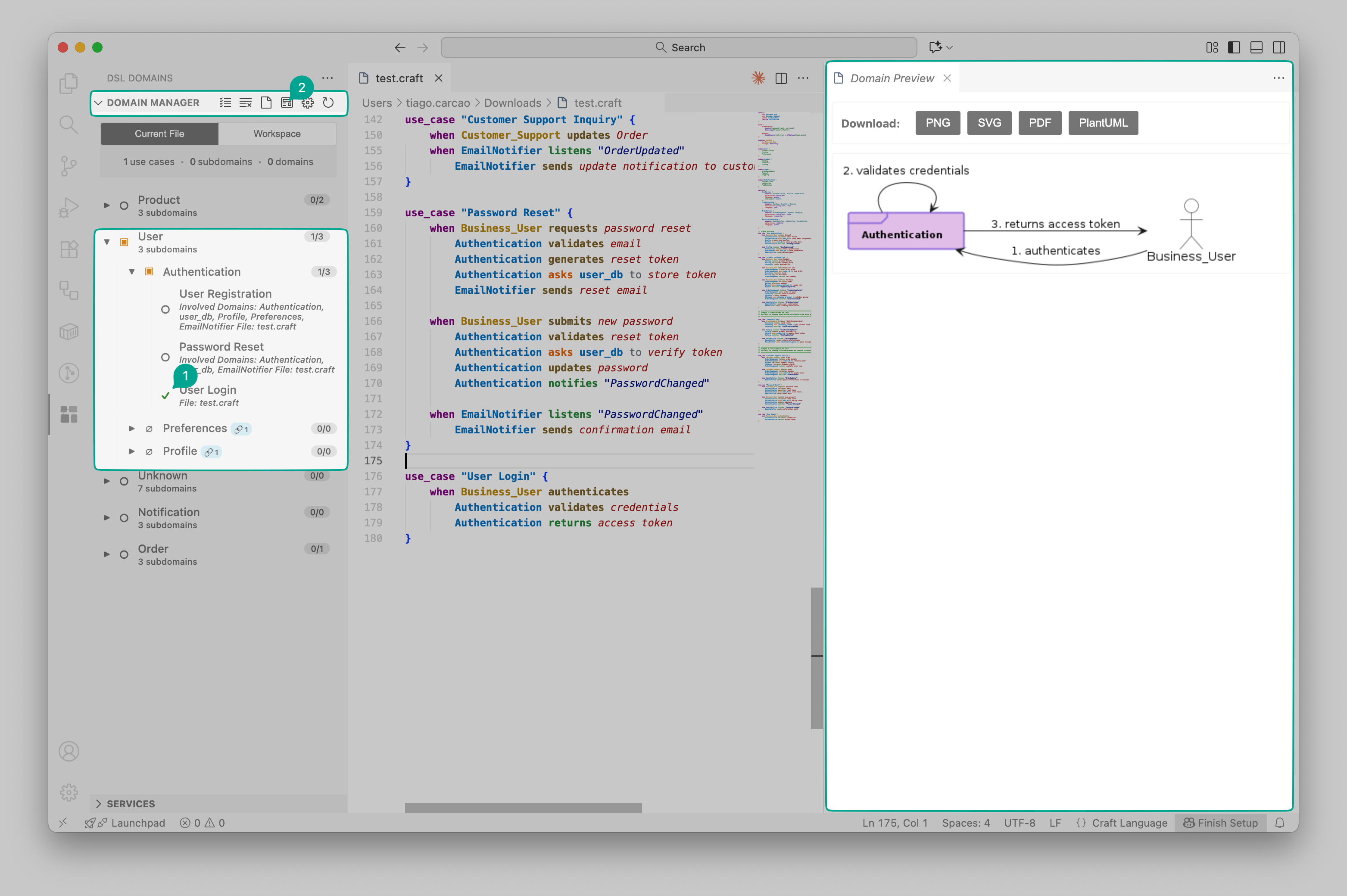
To generate a domain diagram:
- Select the domains, bounded contexts, or use cases you want to visualize
- Configure the diagram mode (Detailed or Architecture)
- Click the Preview button (eye icon) in the toolbar
- The diagram opens in a new panel beside your code
Services View
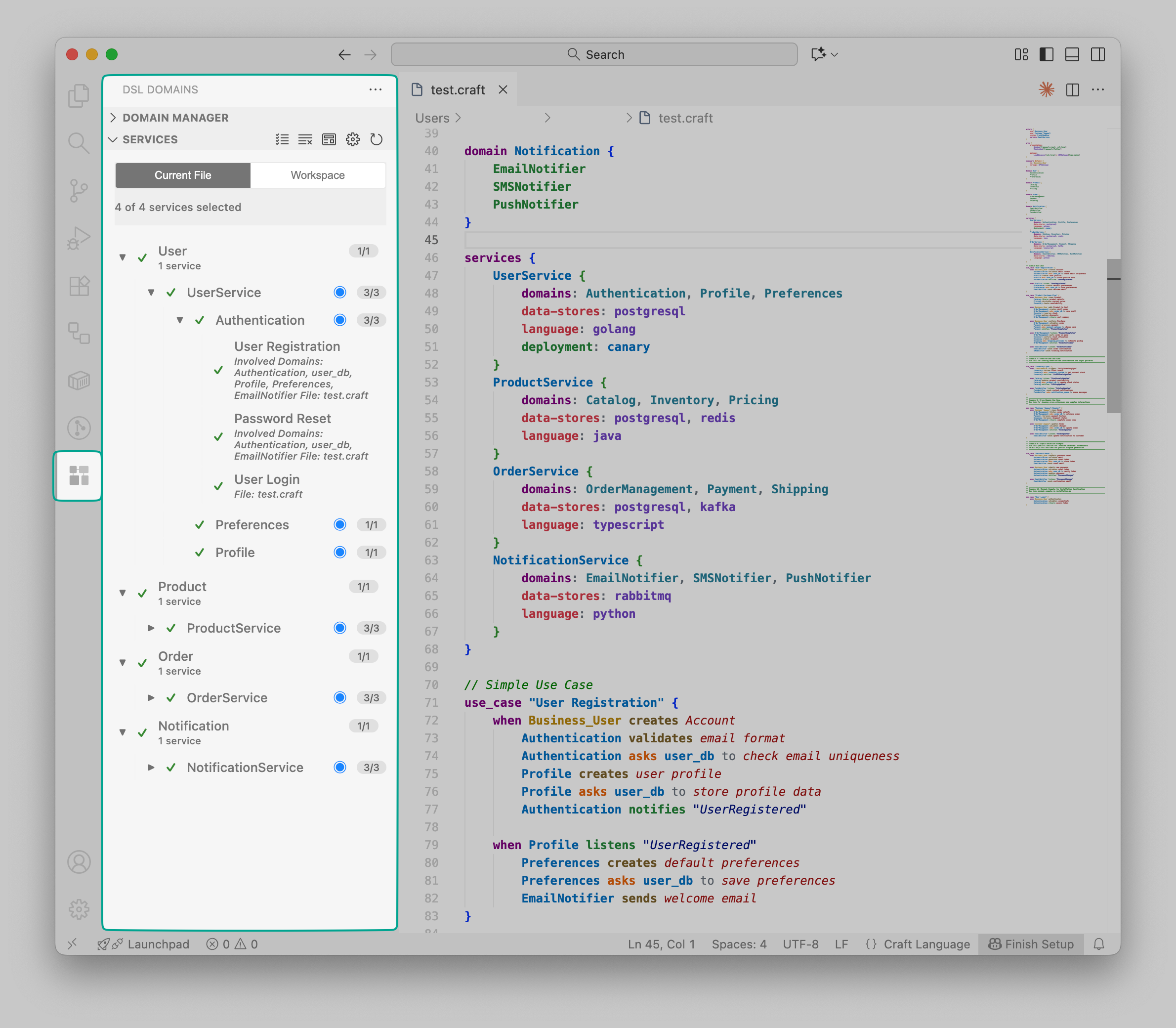
The Services view provides comprehensive control over service architecture visualization.
Service Hierarchy
[SCREENSHOT NEEDED: Fully expanded service tree]Show all four levels: service groups, services, bounded contexts, use cases
Services are organized in a four-level hierarchy:
- Service Groups: Logical grouping (e.g., "Core Services", "External Services")
- Services: Individual microservices or components
- bounded contexts: Domain boundaries within services
- Use Cases: Specific functionality
Service Selection
Similar to the Domain Manager, use checkboxes to select:
- Entire service groups
- Individual services
- Specific bounded contexts within services
- Individual use cases
Selection state cascades automatically up and down the hierarchy.
Service Focus Control
[SCREENSHOT NEEDED: Focus buttons on services]Close-up showing services with both focused (◉) and unfocused (◎) states
Each service and bounded context has a focus button that controls visualization detail:
- Focused (◉): Service shown as internal component in C4 diagrams with full detail
- Unfocused (◎): Service shown as external system with simplified view
This allows precise control over which services are shown in detail vs. abstracted as external dependencies.
C4 Diagram Configuration
[SCREENSHOT NEEDED: Services diagram options panel]Show expanded options with all configuration toggles visible
Click the gear icon to access advanced C4 diagram options:
Mode Options:
- Transparent: Shows direct service-to-service connections
- Boundaries: Shows connections at domain boundary level
Database Options:
- Show: Include database components in diagram
- Hide: Exclude database components
Focus Layer:
- Business: Focus on business logic and domain services
- Presentation: Focus on UI and presentation components
- Composition: Focus on service composition and integration patterns
Infrastructure:
- Show: Include infrastructure components (message queues, caches, etc.)
- Hide: Exclude infrastructure components
Generating Service/C4 Diagrams
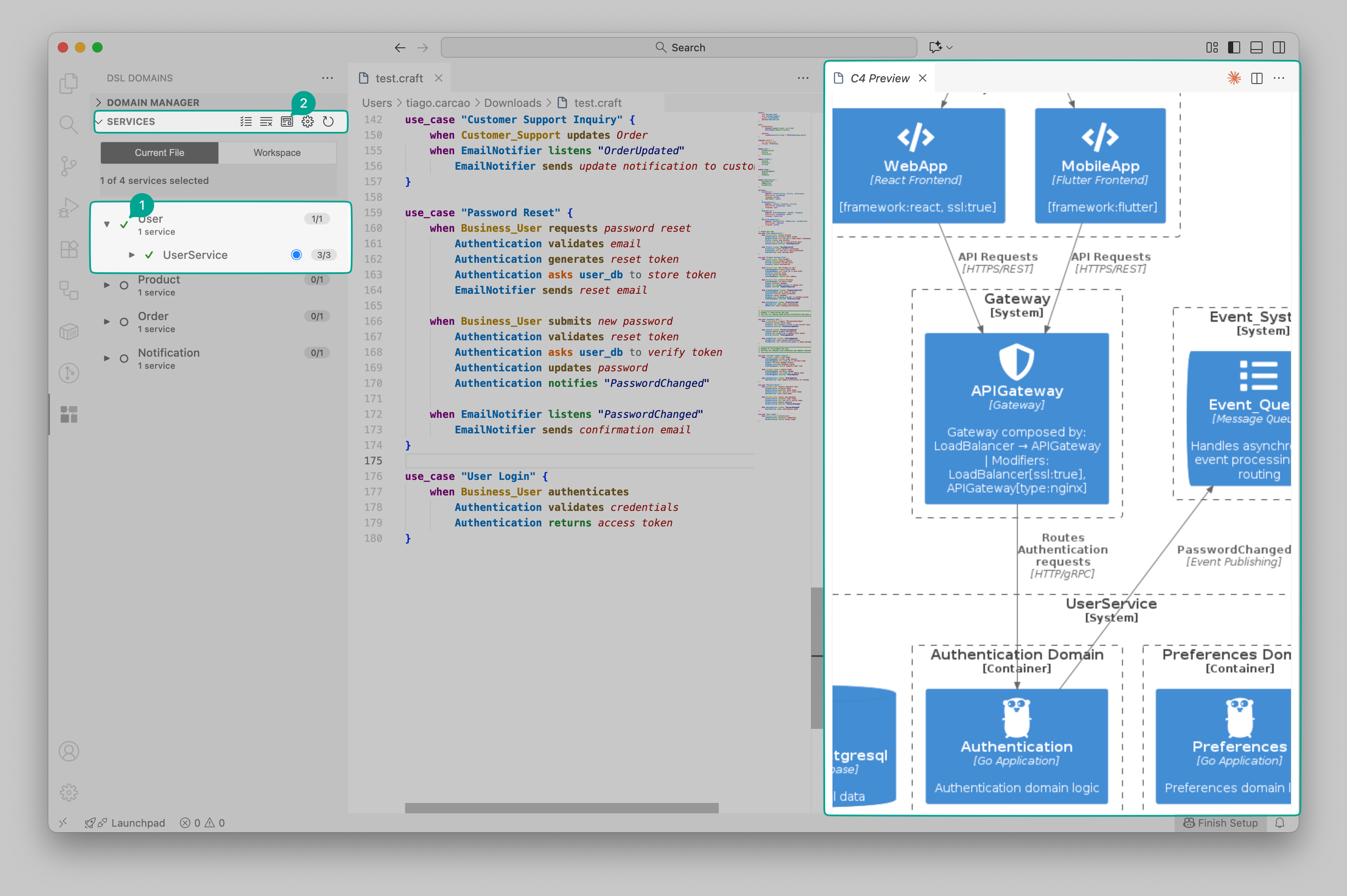
To generate a C4 architecture diagram:
- Select the services and use cases you want to visualize
- Set focus levels for each service (internal vs external)
- Configure diagram options (mode, database visibility, focus layer, infrastructure)
- Click the Preview button (eye icon)
- The C4 diagram opens showing your selected elements with configured settings
Live Diagram Preview
[SCREENSHOT NEEDED: Split view with code and live preview]Show .craft file on left and generated diagram on right
Generate architecture visualizations in real-time:
Keyboard Shortcuts
- Ctrl+Shift+C (or
Cmd+Shift+Con Mac): Preview C4 architecture diagram - Ctrl+Shift+D (or
Cmd+Shift+Don Mac): Preview domain diagram
Command Palette
Press Ctrl+Shift+P (or Cmd+Shift+P on Mac) and search for:
Craft: Preview C4 Diagram- Generate from entire fileCraft: Preview Selected C4 Diagram- Generate from selected codeCraft: Preview Domain Diagram- Generate domain diagram from fileCraft: Preview Domain Diagram from selection- Generate from selection
Selection-Based Previews
[SCREENSHOT NEEDED: Selected code being previewed]Show highlighted code selection on left and resulting partial diagram on right
Create focused diagrams by selecting specific portions of your Craft code:
- Highlight the services, domains, or use cases you want to visualize
- Run "Preview Selected C4 Diagram" or "Preview Domain Diagram from selection"
- Only the selected elements appear in the generated diagram
This is perfect for documentation, focusing on specific features, or isolating parts of large architectures.
Downloading Diagrams
[SCREENSHOT NEEDED: Download buttons in preview panel]Show preview panel with PNG, SVG, PDF, and PlantUML download buttons
Export diagrams in multiple formats directly from the preview panel:
- PNG: Raster format for presentations, documents, and sharing
- SVG: Scalable vector format for web, print, and editing
- PDF: Portable format for professional documentation
- PlantUML: Source code format for further editing in PlantUML tools
Downloaded diagrams preserve all your configuration settings (boundaries mode, database visibility, focus levels, etc.).
Cross-References
[SCREENSHOT NEEDED: bounded context with cross-references expanded]Show bounded context with "Also Involved In" section showing reference links
The Domain Manager shows when bounded contexts participate in multiple use cases:
- Link indicator (🔗) displays the number of cross-references
- Expand to see where the bounded context is referenced
- View whether the bounded context is an entry point or supporting participant
This helps you understand coupling and dependencies across your architecture.
Real-time Updates
The sidebar views automatically refresh when you:
- Save your
.craftfiles - Switch between open files
- Edit domain or service definitions
Preview panels can be refreshed by re-running the preview command to see the latest changes.
Multi-file Support
[SCREENSHOT NEEDED: Workspace view with multi-file indicators]Show workspace view with current file items in normal color and other files in gray
When working on large architectures split across multiple .craft files:
- Use Workspace view mode to see all domains and services
- Elements from non-active files appear in a lighter color
- Use Select Current File to quickly filter to just the active file
- Generate diagrams combining elements from multiple files
Server Required
All diagram generation features require the Craft diagram server running on http://localhost:8080 (or your configured URL). See the Installation Guide for server setup instructions.